
Roles and your team
Invite staff, understand the six roles, and control who can see and do what.
Everyone who uses Meadow — your staff, parents and family — signs in to the same school and is a member of it. Each member has a role, and the role decides what they can see and do. Permissions follow the role, so access stays consistent as people come and go.
The six roles
Meadow has six built-in roles. Four are for staff; two are for families.
| Role | Staff? | What they can do |
|---|---|---|
| Owner | Yes | Everything, including billing, settings and managing roles. |
| Manager | Yes | Runs the service day to day — staff, rooms, children, plans and calendar — but not billing or roles. |
| Senior Practitioner | Yes | Everything a Practitioner can do, plus full management of children and contacts. |
| Practitioner | Yes | Records attendance and activities and posts to the newsfeed for their rooms. |
| Parent | No | Sees and follows their own children, manages their children's contacts and invites family. |
| Family | No | A read-only view of the children they're linked to. |
Staff see everything; families see their own children
Staff (Owner, Manager, Senior Practitioner and Practitioner) see the whole service. Parents and family only ever see the children they're linked to — Today, Staff, Calendar, Reports and School settings are hidden from them, and they land on the Children list instead.
Note: There's no separate parent app. Parents and family sign in to the same Meadow school as your team — they just see far less.
Invite a staff member
This section is about inviting staff. Inviting parents and family starts from a child's record and works a little differently — see inviting parents and family.
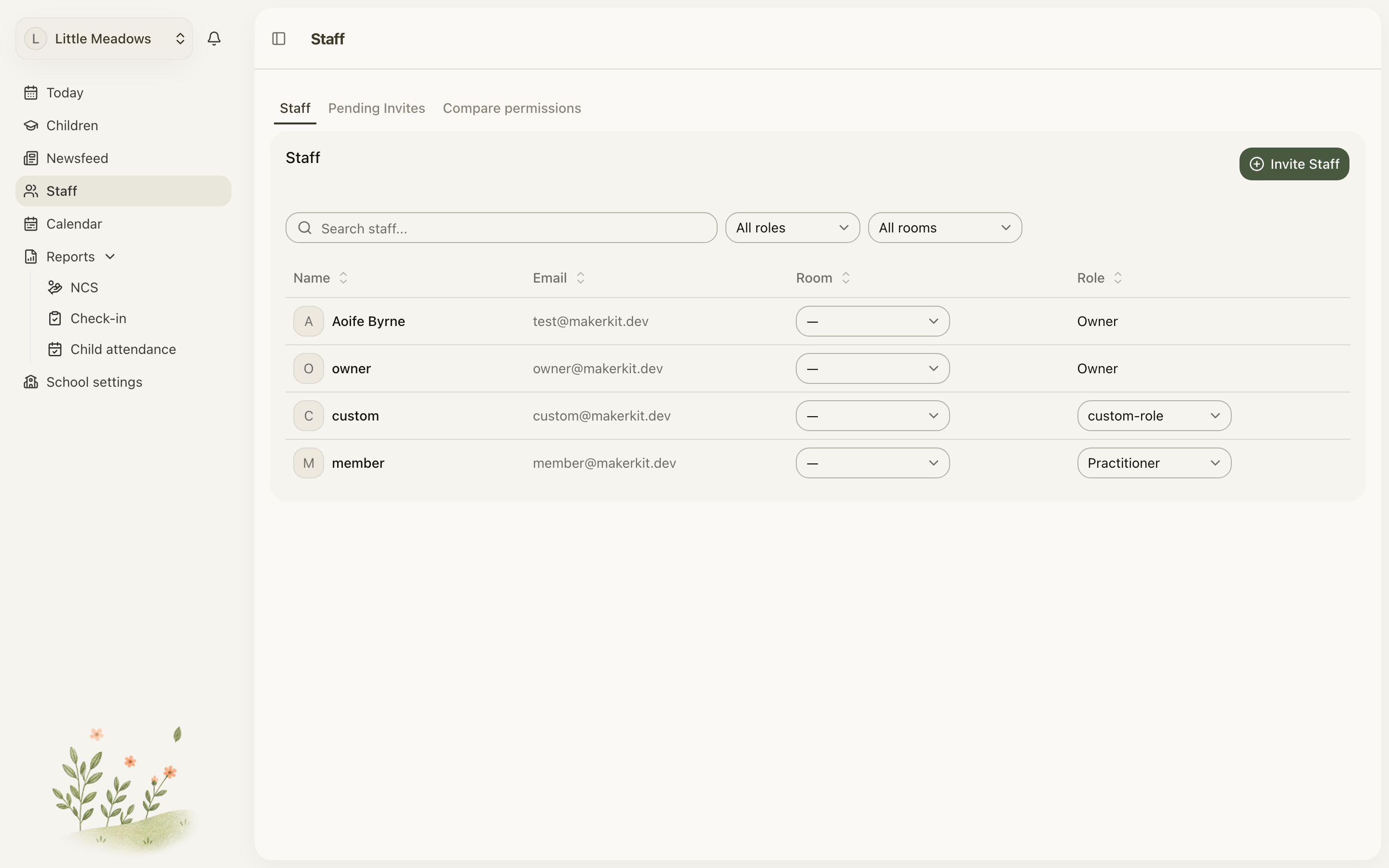
To invite staff, go to Staff in the sidebar and choose Invite Staff (top-right of the Staff card, or in the empty state if you've no staff yet).
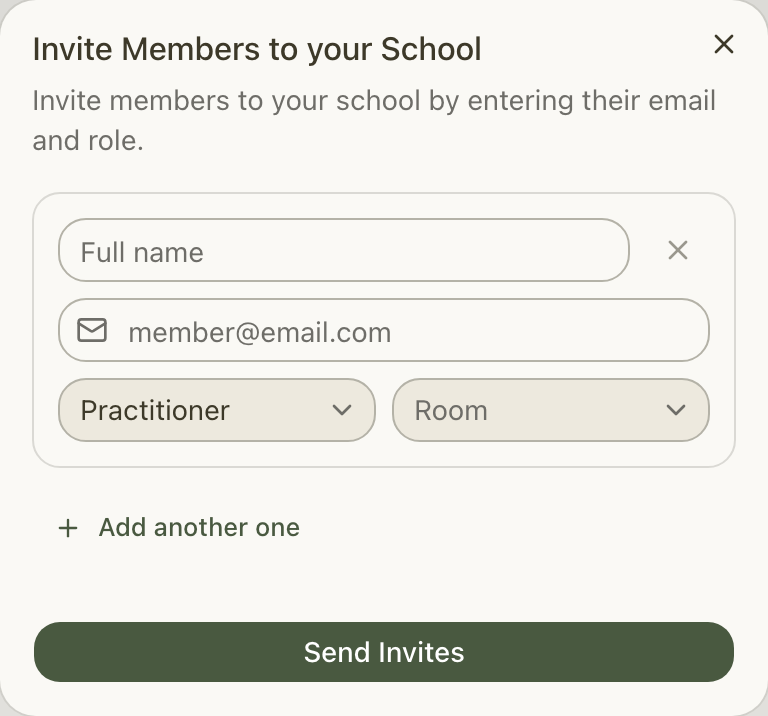
The Invite Members to your School dialog opens. For each person:
- Enter their Full name.
- Enter their Email.
- Pick a Role.
- Pick a Room — this one is required (more on that below).
- To add another person, choose Add another one. You can invite up to five people at once.
- Choose Send Invites.
Each person gets an email invitation. When they accept — signing in or creating an account first — they join your school in the role and home room you chose.
Tip: You can invite people at your own level or below. An Owner can invite anyone (including another Owner); a Manager can invite Managers, Senior Practitioners and Practitioners — but not Owners. The Role dropdown only offers the roles you're allowed to assign.
Why the Room is required
The Room field looks optional, but a room must be selected for each person before you can send the invite — there's no "no room" option in this dialog. The room becomes that person's home room when they accept. If Send Invites seems to do nothing, an empty room is the usual cause.
Pending Invites
Sent invitations wait under the Pending Invites tab on the Staff page until they're accepted. From there you can:
- Resend or Renew an invitation.
- Delete an invitation you no longer need.
When there's nothing waiting, the tab reads No pending invitations.
Changing a member's role
If someone's role changes — say a Practitioner becomes a Senior Practitioner — an Owner can update it from the Staff tab. In that person's row, open the inline Role dropdown and pick the new role; it saves straight away.
Changing roles is Owner-only. Managers and other staff see each member's role as plain text rather than a dropdown. The dropdown also never appears for your own row, for the account owner, or for anyone at the same or higher rank than you — and the Owner role can't be assigned this way.
Compare permissions
To see exactly what each role can do, open the Compare permissions tab on the Staff page.
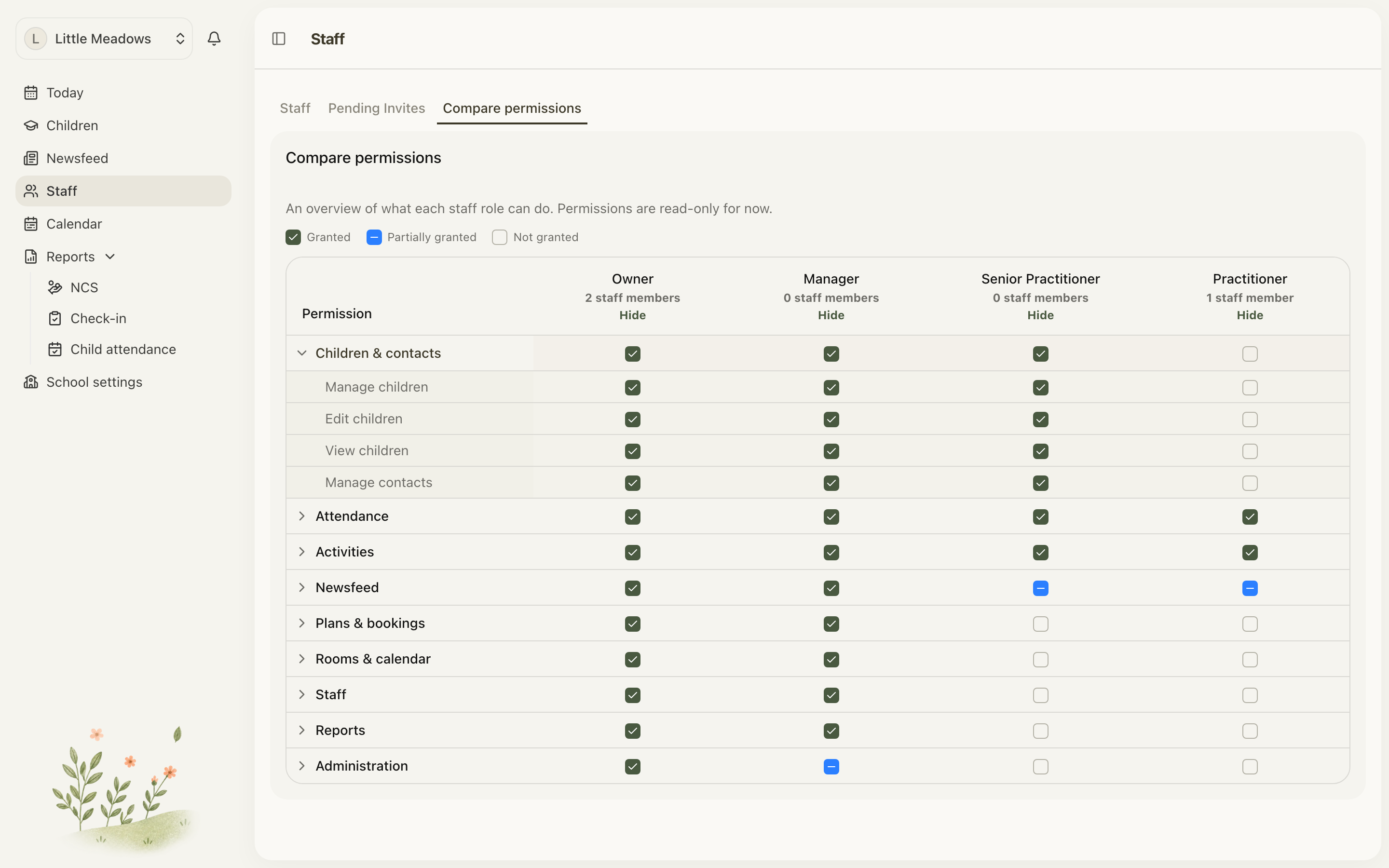
It's a read-only matrix of every staff role and the permissions it holds, grouped by area: Children & contacts, Attendance, Activities, Newsfeed, Plans & bookings, Rooms & calendar, Staff, Reports and Administration. Each cell shows whether that role is granted, partially granted or not granted the permission. Expand any group to see the individual permissions.
This tab is for viewing only — you can't change permissions here.
A couple of things to know
- There's no "remove member" button on the Staff page yet. You can change a role and manage pending invites, but removing a staff member from the school isn't available in the app at the moment.
- Clocking staff in and out isn't available yet either. Recording staff attendance is on the way, but there are no staff check-in or absence controls on the Staff page today.
Common questions
Which roles can I give someone when I invite them? When inviting, you can choose any staff role at your own level or below — so a Manager can invite Managers, Senior Practitioners and Practitioners, but only an Owner can invite another Owner. (Changing an existing member's role is stricter — that's Owner-only; see below.)
I'm a Manager — why can't I change anyone's role? Changing roles is reserved for Owners. The inline Role dropdown only appears for Owners, and only for members ranked below them. Ask an Owner to make the change.
Invites are blocked with "An active subscription is required to invite members." Inviting staff needs an active subscription. An Owner can sort this under Billing, then you can try again. See School settings.
I got "You cannot invite members with the [role] role." You tried to invite someone into a role above your own. Pick a role at your level or below, or ask an Owner to send invitations for the more senior roles.
Send Invites does nothing. Check that every row has a Full name, a valid Email, a Role and — easily missed — a Room. A blank room quietly blocks submission. Each email must also be unique; duplicates show Duplicate emails are not allowed.
A parent says they can't see Today, Staff or Reports. That's expected. Parents and family are non-staff, so those areas are hidden and they're sent to the Children list if they open a staff-only link directly. Only staff see Today, Staff, Calendar, Reports and School settings.
Where do I check exactly what each role can do? Go to Staff and open the Compare permissions tab. It lays out every staff role against each permission, grouped by area. It's view-only for now.