
Inviting parents and family
Give a child's parents and family a login so they can follow their child.
Parents and family follow a child by joining your school as members — with access limited to their own children. You invite them from the child's Family tab, using a contact you've already added. If you haven't set up the child's contacts yet, start with Contacts and relationships.
There's no separate parent app. Parents and family sign in to the same Meadow workspace as your team, but they only ever see the children they're linked to.
Inviting a contact
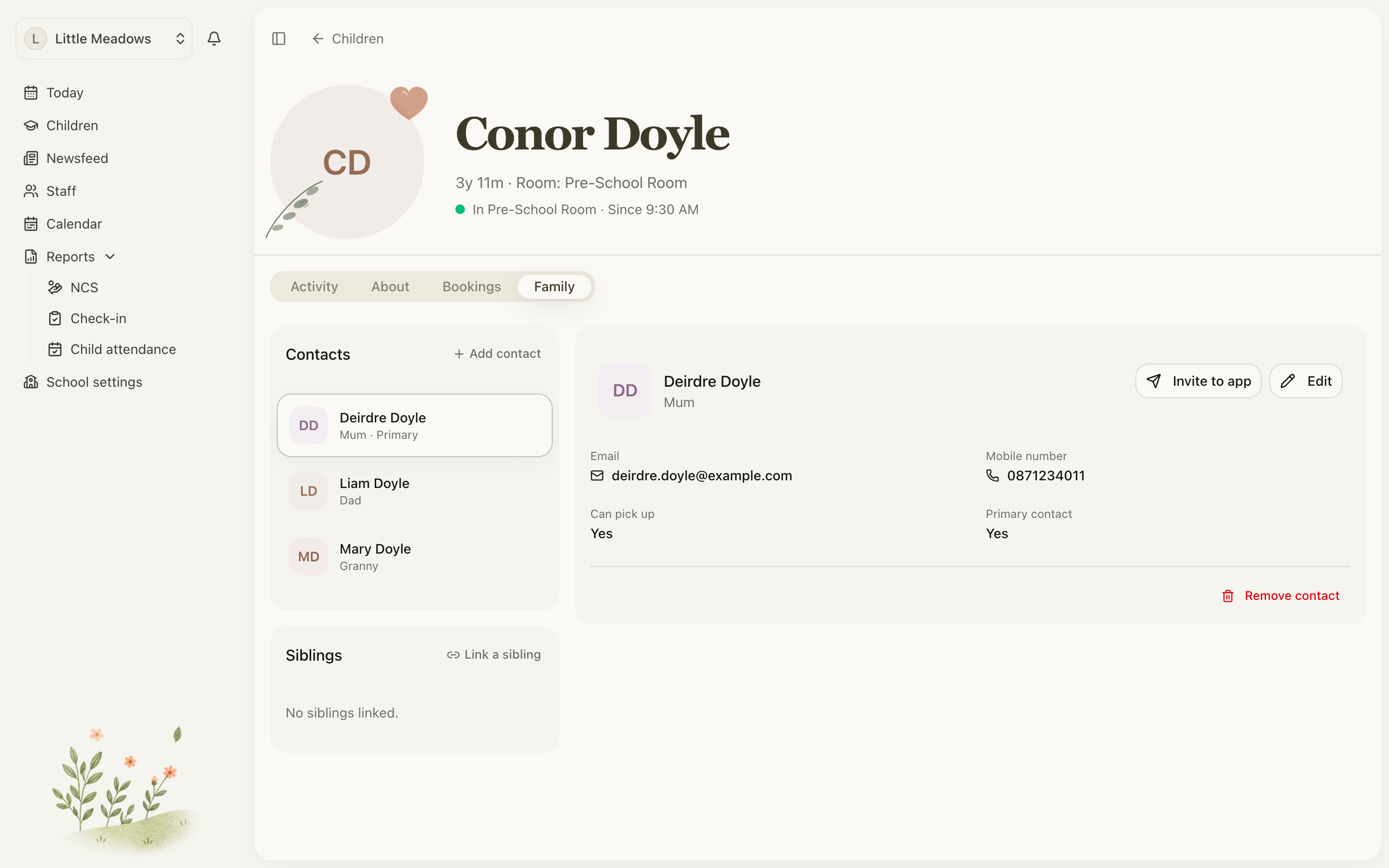
- Open the child's profile and go to the Family tab.
- In the Contacts list, select the contact you want to invite.
- In the detail pane, click Invite to app.
An invitation email is sent to that contact, and you'll see the toast Invitation sent successfully. In the list, their status changes to a grey clock and the detail pane shows the Invited badge.
Note: The invitation link expires after 7 days. If it lapses before they accept, cancel the invitation and send a new one.
The Invite to app button only appears when the contact has an email address, doesn't already have a login, and doesn't have an invitation pending. If you don't see it, see the common questions below.
Inviting as you add a contact
You can also send the invite the moment you create the contact. In the Add contact form, set Invite as to Parent or Family and the login invite goes out as soon as you save. Leave it on Don't invite to add the contact now and invite them later.
Note: Invite as only controls login access and role — it isn't a contact-type picker. To flag someone as an emergency contact, use the separate Emergency contact toggle.
How the role is decided
You don't choose the role on the Invite to app button — Meadow sets it from how the contact is linked to the child:
- A Parent-type contact joins as a Parent.
- A Family-type contact joins as Family.
Owners and Managers can switch a contact between the two roles afterwards — see Changing a contact's role below.
What each role can see
Both roles only ever see the children they're linked to. Staff-only areas — Today, Staff, Reports and settings — are hidden from them. Adding a parent or family link never changes what your staff can see.
- Parent — access to all of the child's information: photos, posts, private messages, the child profile, and invitations. A Parent can also manage their child's contacts and invite other family members.
- Family — can pick up the child and view photos and posts. This is the right choice for grandparents and other family members.
For how staff roles compare, see Roles and your team.
Managing invitations
Owners and Managers can manage an invitation once it's been sent.
Cancelling an invitation
- Select a contact showing the Invited badge.
- Click Cancel invitation.
- Confirm in the dialog (Cancel invitation for {name}?).
You'll see Invitation cancelled. The contact and their links to the child are left untouched, so you can invite them again whenever you're ready.
Changing a contact's role
- Select a contact who has a login or a pending invite — they'll show a Role: Parent or Role: Family chip.
- Click the role chip.
- In the Change role dialog, pick Parent or Family.
- Click Save changes.
You'll see Role updated, and their access changes straight away.
Note: There's no "resend" button. To send an invitation again, cancel it and then invite the contact once more.
Common questions
Why can't I see the "Invite to app" button for a contact?
The button only appears when three things are true: the contact has an email address, they don't already have a login, and they don't have an invitation already pending. Add an email via Edit on the contact and the button will appear. Note that among staff, only Owners and Managers can invite — Senior Practitioners and Practitioners cannot. (A Parent can invite family for their own children.)
How do I send an invitation again?
There's no resend action. Cancel invitation to clear the pending invite, then select the contact and choose Invite to app to send a fresh one.
What's the difference between Parent and Family?
A Parent sees everything about the child — photos, posts, private messages, the profile and invitations — and can manage the child's contacts. Family can pick up the child and view photos and posts, which suits grandparents and other relatives. Both only ever see the children they're linked to.
Who can cancel an invitation or change a role?
Only Owners and Managers. Senior Practitioners and Practitioners can't cancel invitations or change roles, even where they can add and edit contacts.
I tried to cancel an invitation and got "No pending invitation found."
The invitation was most likely already accepted, or it never existed. Refresh the page — an accepted contact shows the green Active status instead of the grey Invited clock, and an active contact can't be cancelled.