
The child profile
What each child's profile holds and how its tabs are organised.
Every child in Meadow has their own profile — the single place that holds their details, health, family and funding. Open it from the Children list in the sidebar by clicking any child's row. The back link at the top-left reads Children and takes you straight back to the list.
The header
At the top of every profile you'll see the child's name and age, their home room (Room: {room name}), and a live status line for today:
- A green dot and In {room} · Since {time} when they're checked in.
- Not checked in when they haven't arrived.
- Their absence reason (and Until {date} for a multi-day absence) when they're marked away.
This status updates as the day goes on, so the profile always reflects where the child is right now.
The four tabs
A profile is split into four tabs. It opens on Activity by default.
- Activity — a timeline of the child's day, plus quick actions for attendance.
- About — the child's full record: basic info, health and registration.
- Bookings — funding and the weekly plan. Staff only.
- Family — the child's contacts and who can collect them.
Activity
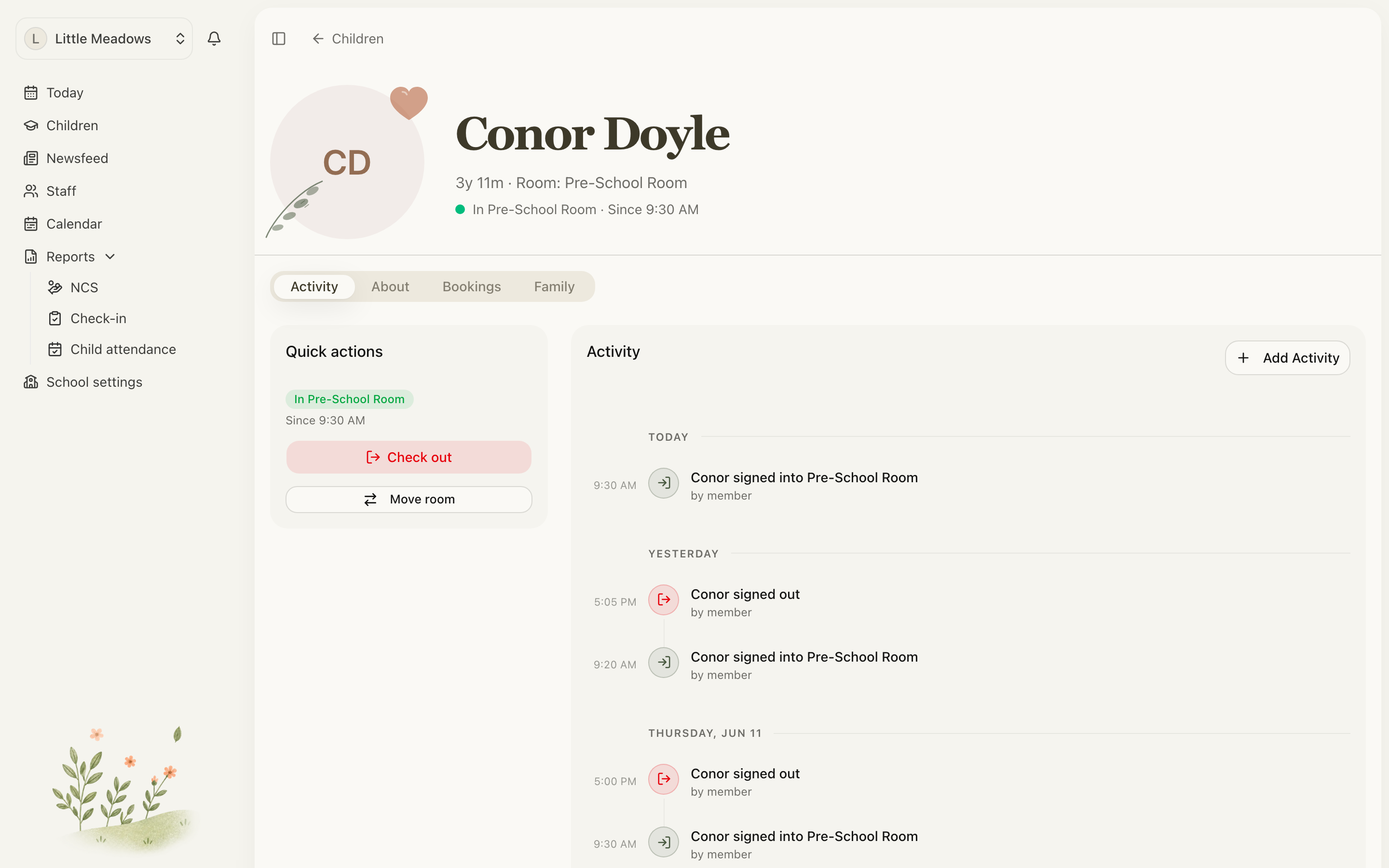
The Activity tab is a timeline of the child's day. Alongside it sits a Quick actions card, which is the fastest way to record attendance for that child:
- Check in when they arrive, and Check out when they leave.
- Mark as an absence — Out sick, On holiday or Absent.
- Move room to move a checked-in child to a different room (more on this below).
For the full attendance picture, see checking children in and out.
Move room is for today only
Move room records a room move for today — it does not change the child's home room. Use it when a child spends part of a day in a different room.
Note: To change a child's home room (their base room), go to the Children list and use the room dropdown on their row. The home room can't be changed from the profile.
About
The About tab holds the child's full record. A menu down the left-hand side (Sections) splits it into three: Basic info, Health and Registration. It opens on Basic info.
Each section has its own Edit button. Editing opens a side sheet on the right; make your changes and click Save Changes.
Basic info
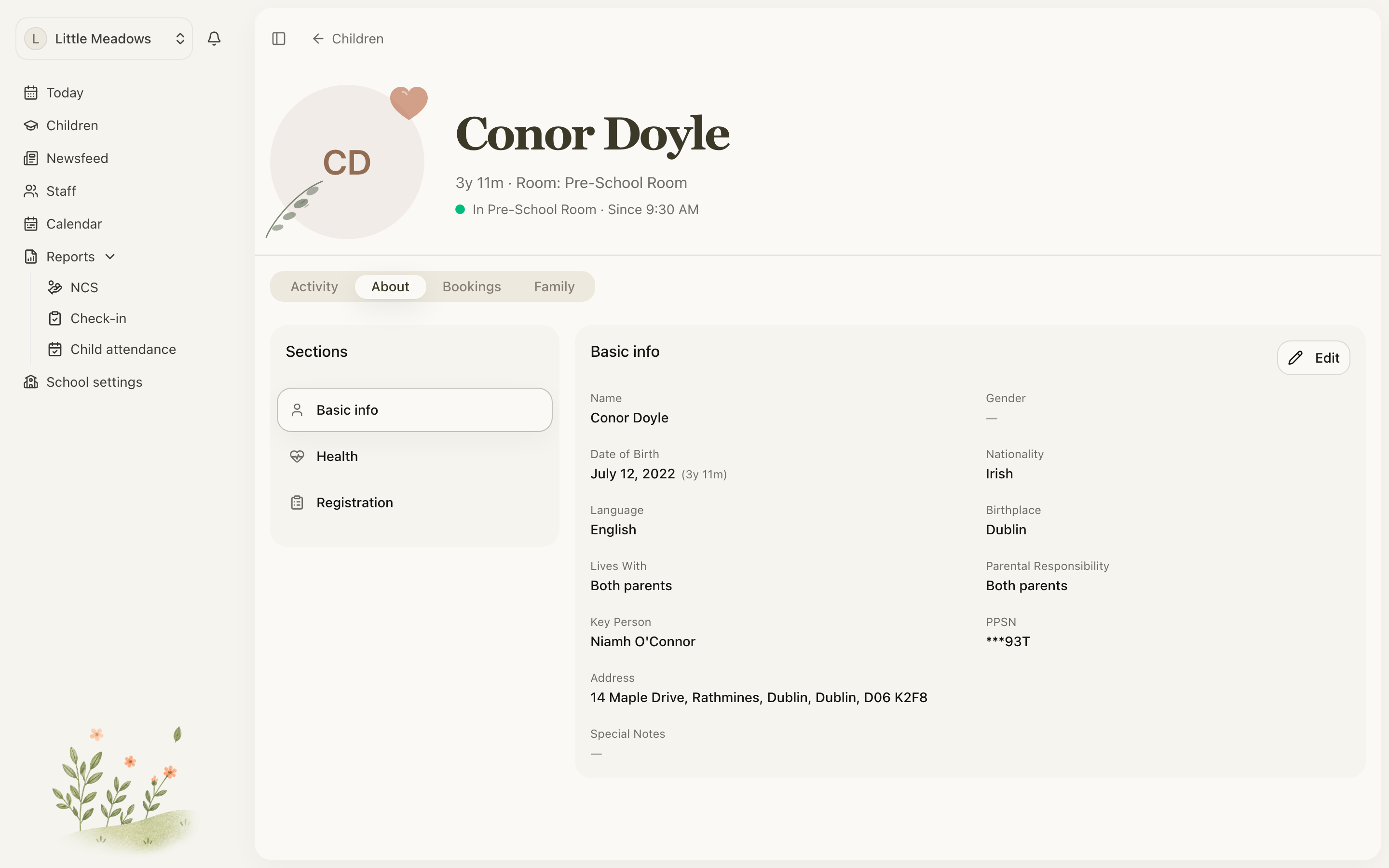
This is the child's core record:
- Name, Gender (Male, Female or Other), and Date of Birth (with their age).
- Nationality and Language.
- Lives With and Guardian.
- Address, including County and Eircode.
- Special Notes.
Anything left blank shows as a dash (—), and a child with no address shows No address on file.
Health
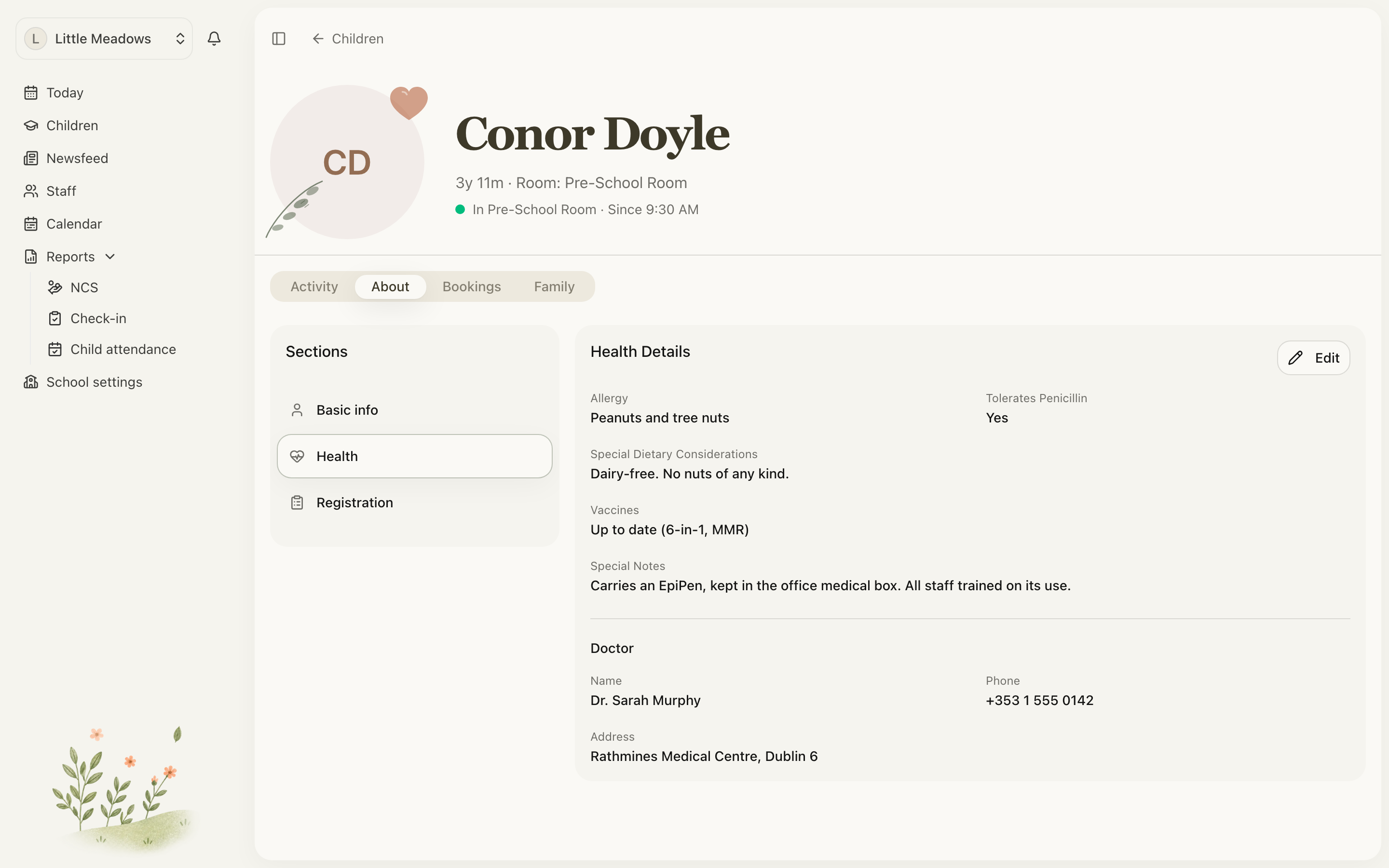
The Health section records what your team needs to keep a child safe and well:
- Allergy and Special Dietary Considerations.
- Tolerates Penicillin — Yes, No or Unknown.
- Vaccines and Special Notes.
- The child's Doctor — name, phone and address.
Registration
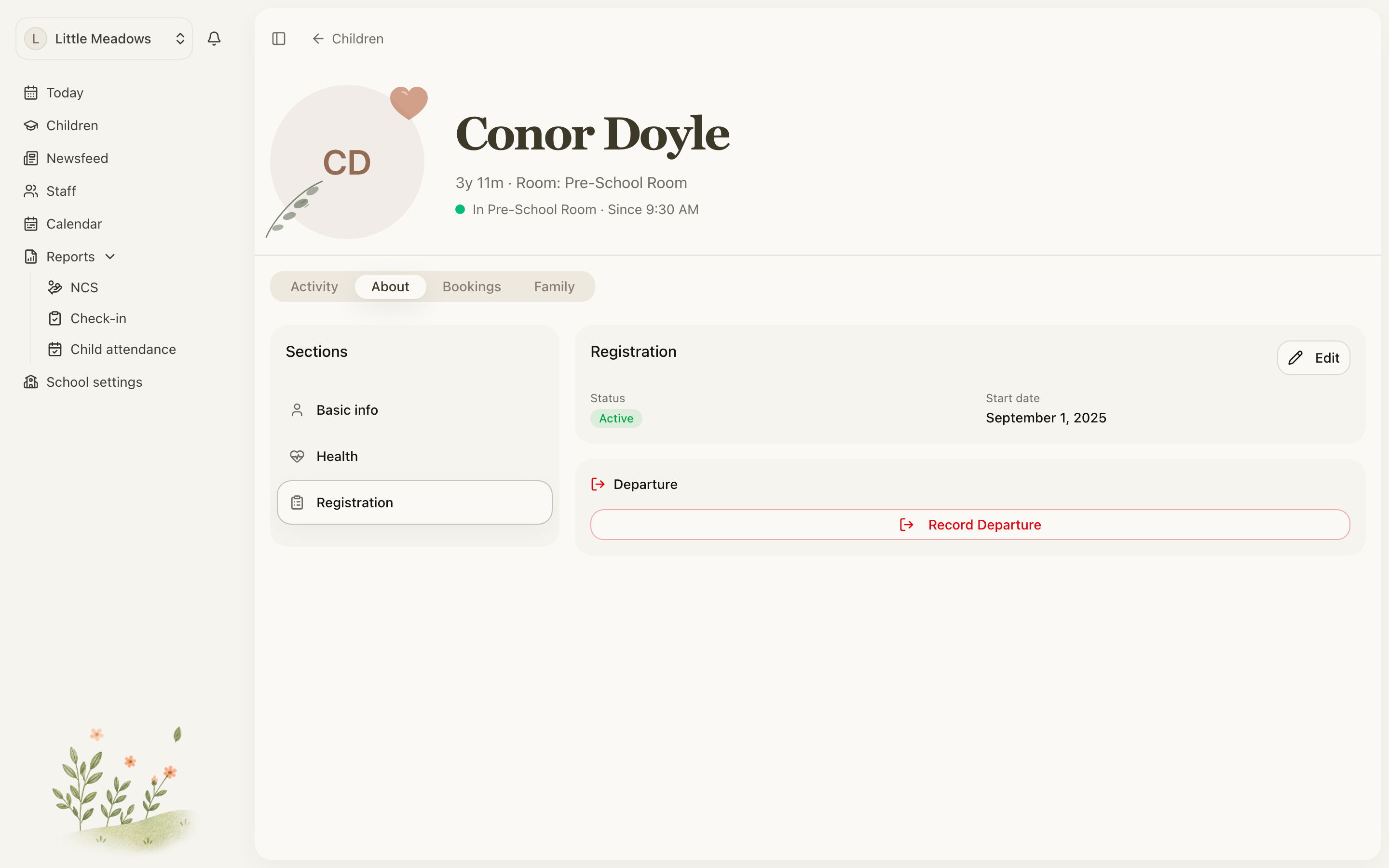
The Registration section is staff only and shows the child's Status and Start date, alongside a Departure card for when a child moves on.
The most important thing to know: you don't choose a child's status. It's worked out automatically from their dates. To change it, edit the Start date here — a future start date puts the child on the Waitlist, and today or earlier makes them Active.
Note: A start date can't be later than a recorded leave date. If it is, you'll see Start date can't be after the leave date. — change the leave date first.
Recording a departure
When a child is leaving, record it from the Departure card in the Registration section (owners and managers only):
- Click Record Departure.
- Set the Leave Date and choose a Reason for Leaving — Started School, Relocated, Changed Provider, Family Circumstances, Financial, Graduated or Other.
- Add any Notes, then click Confirm Departure.
What happens next depends on the leave date:
- A leave date in the future shows as Planned Departure, and the child stays Active until that day.
- A leave date of today or in the past makes the child Departed.
You're never locked in. For a child with a planned departure, use Cancel Departure to clear the leave date and keep them active. For a child who has already left, use Re-enroll Child to bring them back to active.
Bookings
The Bookings tab is where a child's funding and weekly plan live, and it's staff only — parents and family don't see it. It has its own Sections menu with Funding (ECCE, NCS and AIM support) and the weekly Bookings plan.
This page only introduces the tab. For the detail, see the booking plan guide.
Family
The Family tab lists everyone connected to the child — their contacts, relationships and who can collect them — and is where you invite parents and family. See Contacts and relationships.
Common questions
Where do I find ECCE, NCS or the child's plan? On the Bookings tab, not About. Bookings is staff only; parents and family don't see it, and the Funding section needs programme-management access on top of that.
How is a child's status set? It's worked out from the dates, not chosen by hand. A future start date shows Waitlist, today or earlier shows Active, and a recorded departure makes them Departed (or Planned Departure while the leave date is still in the future). Edit the Start date in Registration to change it.
I used Move room but the child's home room didn't change. Why? Move room only moves the child for today — it's a room move in attendance. To change their home room, use the room dropdown on their row in the Children list.
I can't save a child's details — the button is greyed out. Date of Birth is required, so the form won't save until one is set (older imported records sometimes have none).
Who can edit what? Owners and managers can edit everything, including the Registration and Departure section and the Bookings tab. A parent with edit access can update their own child's basic and health details, but can't record a departure or open Bookings. Family members can view the child's information but not edit it.