
Check children in and out
Record arrivals, departures and room moves for one child or a group.
Checked against Meadow on 2026-10-12
Staff can record children’s attendance. Parents may have attendance actions for their linked children when the setting allows them.
Check in one child
- Open Today and select the room, or open the child’s profile.
- Choose Check in.
- Check the room and time shown. If you are recording an arrival from earlier today, enter the actual time.
- Confirm and check that the child now shows as in the room.
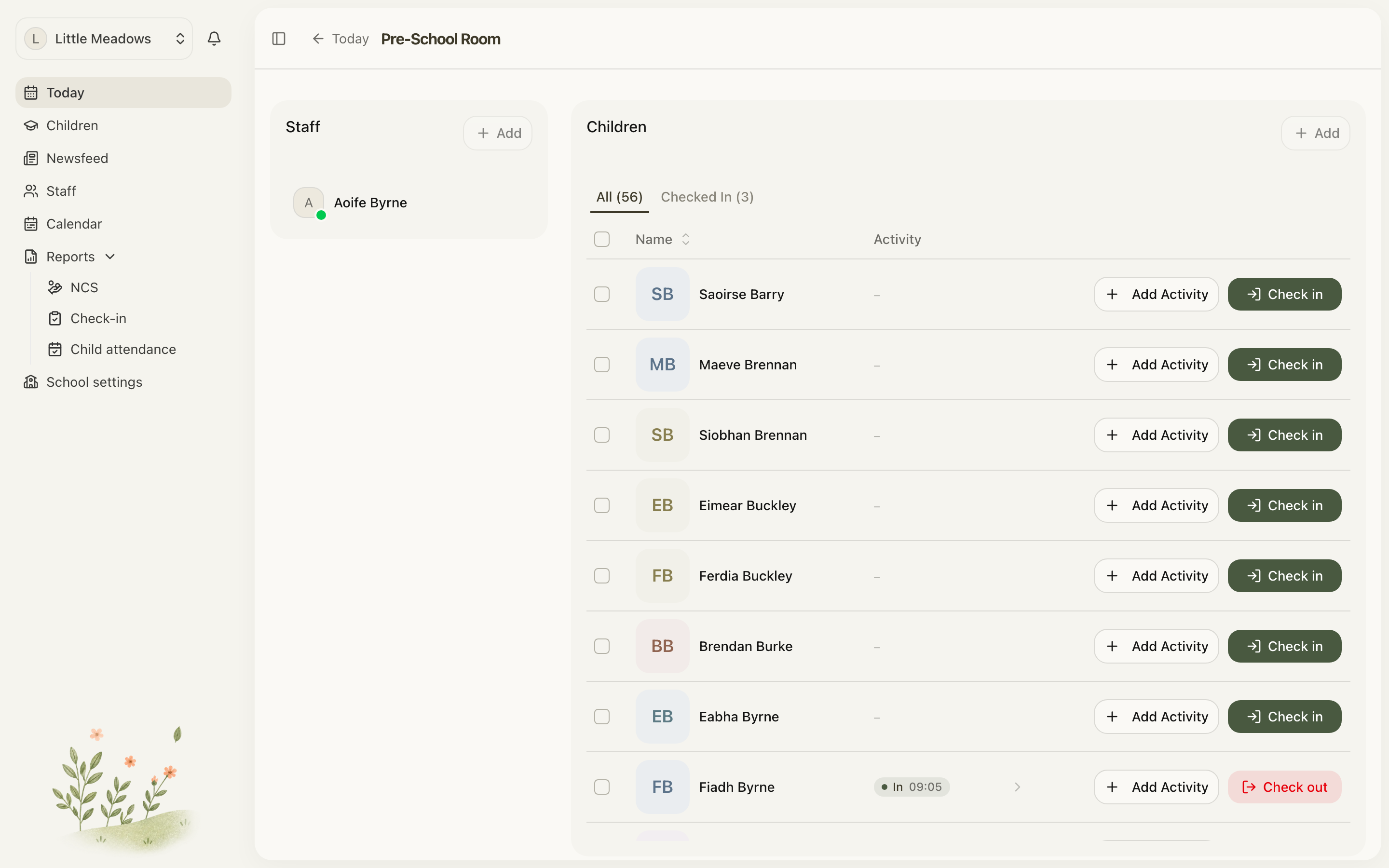
Open the full-size screenshot. Use your browser’s Back button to return to this guide.
Check out or move room
Choose Check out when the child leaves the setting. Choose Move room when they remain at the setting but move to another room. Select the destination and confirm.
A room move updates where the child is recorded now. For an ongoing change to their planned room, update their schedule too.
Record attendance for several children
On the room page, select the children and choose the attendance action. Review the selected names, room and time before confirming. Work in batches of up to 25.
Read the result afterwards. If some children could not be updated, Meadow may have saved the others. Check each reported issue before repeating the action.
Put a mistake right
Times cannot be in the future. If you missed an earlier day or need to fix a saved session, use Correct attendance.
If a child is marked absent, review the absence before checking them in. If Meadow says they are already checked in, check their current room instead of recording another arrival.