
Service calendar
See your open and closed days at a glance, and mark closures.
The Calendar is your service's at-a-glance view of which days you're open and which you're closed. Bank holidays are loaded for you, your weekly rhythm is shaded in, and you can mark one-off closures like training days or a summer break.
You'll find it as Calendar in the menu on the left.
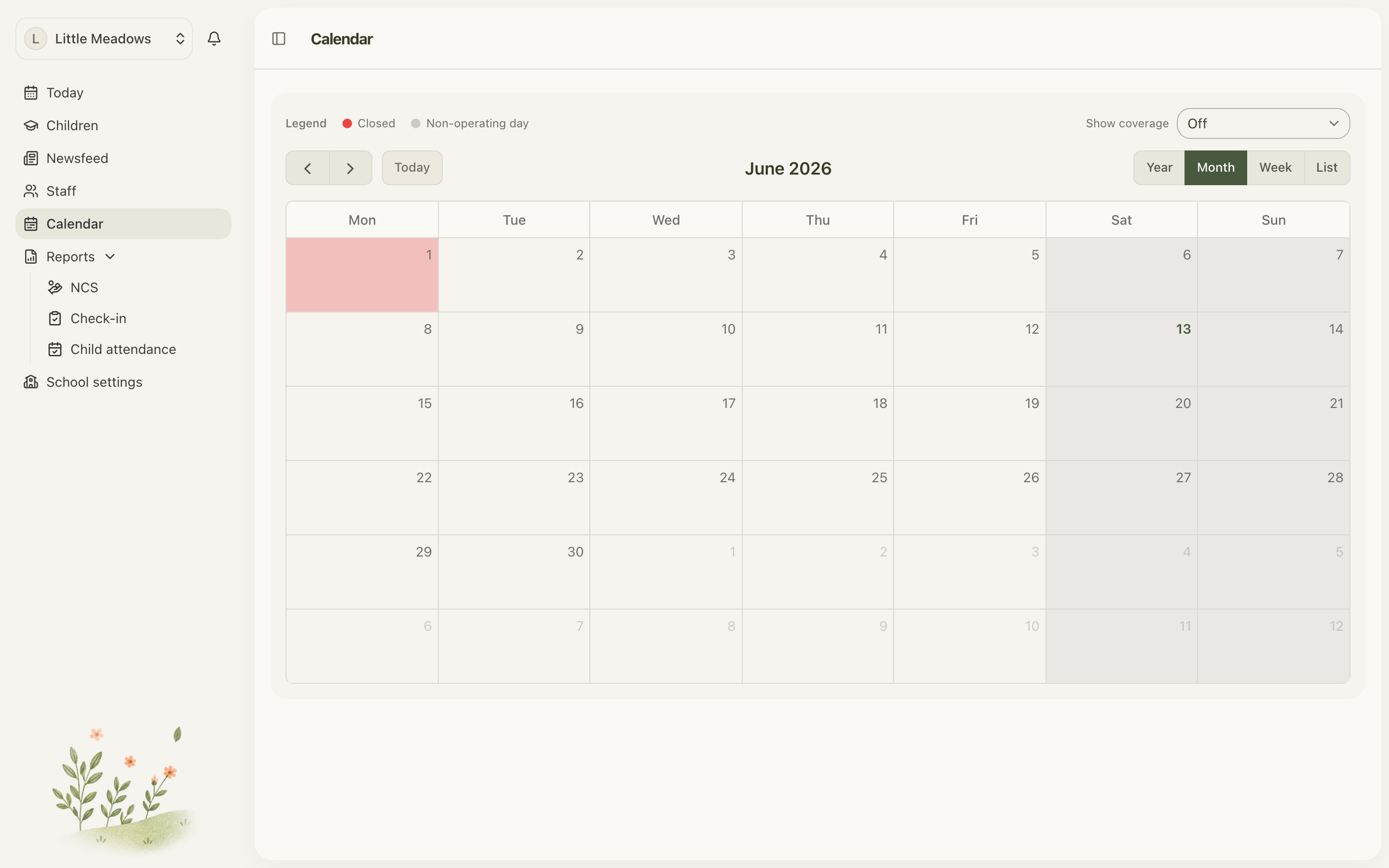
What the calendar shows
The calendar opens on a month grid, with the week starting on Monday. Each day is shaded to tell you, at a glance, whether you're open:
- Closed days are shaded red. This includes any closures you've added and Irish bank holidays, which load automatically — from last year through to two years ahead.
- Non-operating weekdays are shaded grey. These are the weekdays you're simply not open under your opening hours (a Sunday, say) — you're already closed on those, so there's nothing to mark.
- Open days are left clear.
Use the legend in the corner — labelled Legend, Closed, Non-operating day and In schedule — if you ever need a reminder of what the shading means.
Change the view
The toggle in the top-right switches between Year, Month, Week and List. Use the prev and next arrows to move through time, or Today to jump straight back to the current date.
Show coverage
The Show coverage dropdown (set to Off by default) outlines the days covered by a particular attendance schedule — handy for checking when a term or camp runs. Pick a schedule and its days are outlined as In schedule on the grid.
Three things, kept separate
It's easy to mix these up, so here's the quick distinction:
- Calendar (this page) — your closed days and one-off closures.
- Opening hours — your recurring weekly pattern of open and closed days, with times. Set under School settings.
- Attendance schedules — your named booking calendars (Full Year, terms, camps) and ECCE programme years. Also under School settings.
Note: If a weekday is shaded grey when you don't expect it, that's coming from your opening hours, not the calendar. Adjust which weekdays you're open under School settings → Opening hours.
Mark a closure
All staff can view the calendar, but marking closures is for Owners and Managers — other staff see the calendar without the editing controls.
To close one or more days:
- On the grid, click a single day, or drag across a range of days.
- The Add a closure side sheet opens.
- Check the From and To dates. (The To date can't be before the From date.)
- Choose a Reason: Training day, Scheduled closure, Weather, Force majeure, Summer break or Other. Scheduled closure is selected by default.
- Add Notes if you like — optional, up to 500 characters. These are visible in the day-detail panel.
- Click Save closure.
You'll see a Closure saved confirmation, and the day turns red on the grid.
View or delete a closure
To check or remove a closure you've already added:
- Click the day on the grid.
- The side sheet opens, showing the reason, the date and any note.
- To remove it, click Delete closure.
You'll see a Closure removed confirmation.
Common questions
How do I mark the service as closed for a day or a week? Open the Calendar, click a single day or drag across a range, choose a Reason, and click Save closure. Only Owners and Managers can do this.
Why are some days greyed out? Greyed days are non-operating weekdays — days you're not open under your opening hours, so you're already closed on them. To change which weekdays you're open, go to School settings → Opening hours.
Do I need to add bank holidays myself? No. Irish bank holidays load automatically and show up shaded red, from last year through to two years ahead.
If I change my opening hours, will I lose my closures? No. Manual closures are kept even when you change your opening hours, so a training day or summer break you've marked won't disappear.